Install an eSIM With sim.do.
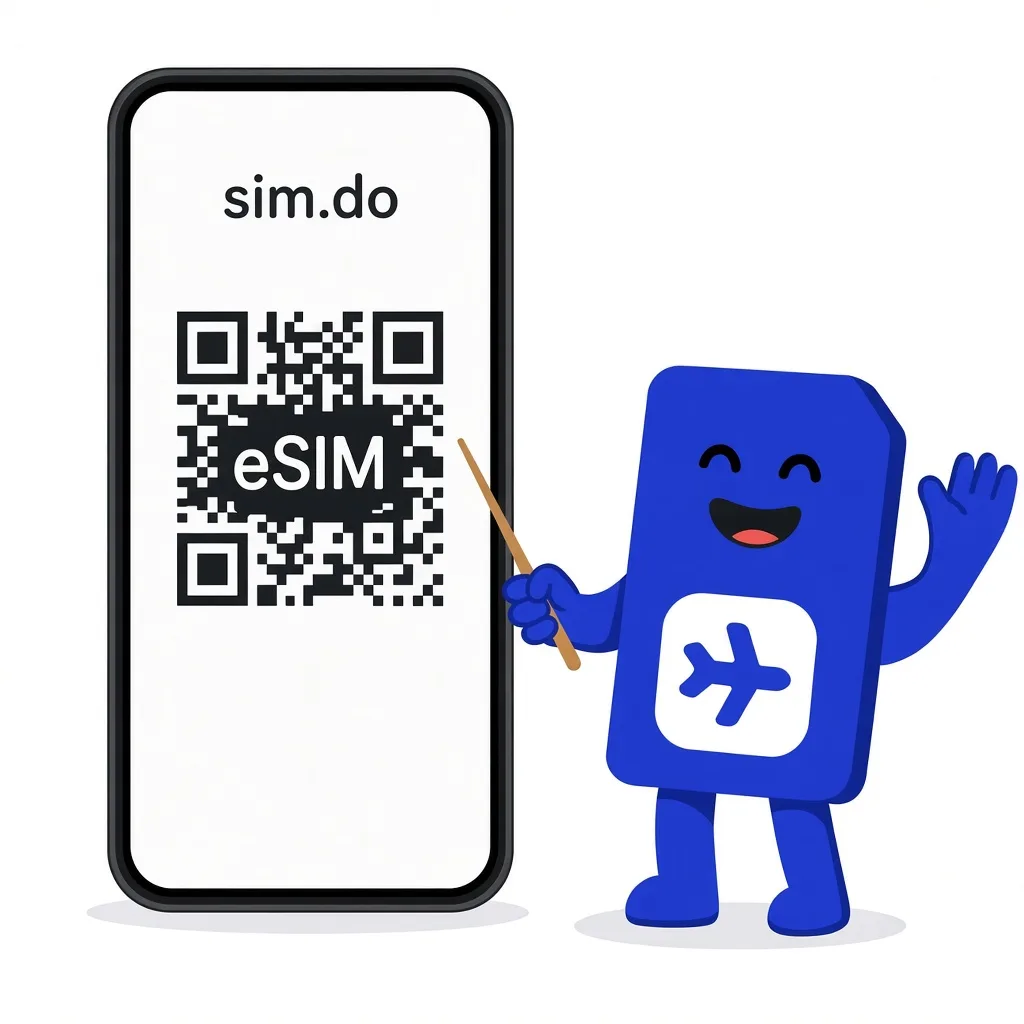
A sim.do eSIM is a prepaid data plan that you download onto an eSIM-capable phone. You do not need an app or an account. After purchase, the QR code appears on the Payment Successful page and in the email.
In short
To install the eSIM, scan the QR code from the order confirmation in cellular settings, or type the activation details by hand. The profile downloads over Wi-Fi. The plan period starts with the first data connection at the booked destination, not when you install.
What installing means
Installing and activating are two steps. Installation stores the sim.do profile on the chip in your device. The plan period starts later.
You get a prepaid data plan for a country, a region, or worldwide. The sim.do line has no phone number, no SMS, and no regular calls. Internet, messengers, and other apps use the data allowance.
You buy without signing up. Right after payment you see the QR code on the website. An email also arrives with the QR code, activation details, and the invoice. An account is optional: under My eSIM Plans in the Dashboard you see the same details if you sign in with the same email address.
What an eSIM is in general is on What is an eSIM?. Whether your model has the chip is on Device Compatibility, or dial *#06#: an EID on screen means the device supports eSIM. The phone must also not be locked to one carrier.

How installation works
Keep the order confirmation ready and connect the phone to stable Wi-Fi. The exact taps for your device are in the installation guide.
Install once
A sim.do eSIM can be installed only once, on one device. Each QR code works once. A second scan of the same details shows an error and does not create a second profile.
- 1
Buy the plan
Choose a country or region on sim.do and finish payment. The QR code appears on the Payment Successful page and, a few minutes later, in the email.
- 2
Open the QR code
Open the email on a second screen, or use the quick-install buttons for iPhone and Android in the same email. Do not photograph the code from the same display that is supposed to scan it.
- 3
Add the profile
Under Cellular or the SIM manager, choose Add eSIM and scan the code. If the scan fails, type the SM-DP+ address and activation code from the email by hand.
- 4
Name the line
Name the profile, for example “sim.do”. Later the line may also show as Travel, Secondary, or with a carrier name. It is the same sim.do eSIM.
iPhone, Samsung, and Pixel
The menu names differ. The steps do not. On iPhone, start at Settings → Cellular → Add eSIM. On Samsung, the path is Settings → Connections → SIM manager. On Pixel, Settings → Network & internet → SIMs.
The order confirmation has quick-install buttons that open the matching guide for iPhone or Android. The full set, with QR, manual entry, and the short install, is in the installation guide.
If Add eSIM is missing, this model or this regional version does not support eSIM. Phones from mainland China, Hong Kong, or Macau may have no eSIM chip, depending on the model. Check the model before you buy a plan.
Before you scan
- Wi-Fi is stable and VPN is off
- The device is unlocked and not locked to a contract
- You still have a free eSIM slot if the model stores only a few profiles
- The order confirmation did not land in spam
What you finish at home
Install the eSIM before the trip. Turn on mobile data for the sim.do line only at the destination, so the period does not start on your home network.
After purchase, the eSIM stays available to install for 30 days. The plan period — 7, 15, 30, or another booked length — starts with the first data connection in the destination area, not on the purchase day.
At the airport there is often no stable network for the profile download. At home, on Wi-Fi, is the more reliable moment. How to turn the line on for data afterwards, without turning off the main SIM for calls, is under Activate an eSIM and Dual SIM.
Mobile data off until you arrive
Leave the sim.do line installed, but without mobile data, until you are in the booked country or region. Otherwise the first connection can start the period.
Questions about installation
The questions that come up most often.
Do I need the sim.do app to install the eSIM?
No. You do not need an app. You install the profile in the phone settings with the QR code or the activation details from the order confirmation.
Can I install the eSIM before I fly?
Yes. Installing at home over Wi-Fi is the normal way. The period starts with the first data use at the destination, if you leave mobile data for this line off until then.
Where is the QR code if I closed the page?
In the order confirmation email. With the same email address you also reach the details in the Dashboard under My eSIM Plans. You do not need to register to buy.
What if the scan fails?
Install manually with the SM-DP+ address and activation code from the email. The page QR code won’t scan describes the exact path.
Read next
Set up your eSIM
Activate an eSIM
Install at home. The period starts only with the first data connection at the booked destination.
Set up your eSIM
eSIM QR code
Where the sim.do QR code is, why it works only once, and how manual entry works.
Something is not working
QR code won’t scan
The camera fails, the code was already used, or it says “no longer valid”: enter it by hand instead of buying again.
Choose a plan and install at home
Pick a country or region. You get the QR code on the Payment Successful page and by email.