QR code won’t scan What applies then.
A sim.do QR code the camera cannot read is usually a display problem. A code the phone rejects as invalid is usually already used.
In short
If only the scan fails, install the sim.do eSIM with the SM-DP+ address and activation code from the same order confirmation. If the phone says the code is no longer valid, the profile was already downloaded once. A second scan is not a new profile. Deleting and scanning again does not restore the code.
Separate a scan error from “no longer valid”
The camera finds no code: too dark, too blurry, the same screen, VPN, or the email only half loaded. Light, a second device, and manual entry help.
The phone says the code is no longer valid or the eSIM cannot be added: the code was already used once. sim.do codes work once. A second scan produces exactly this message. What is still possible after a deletion is under eSIM deleted.
Do not scan twice
A QR code only needs to be scanned once. A second try on the same device or another device is not a backup.
How to make the scan readable
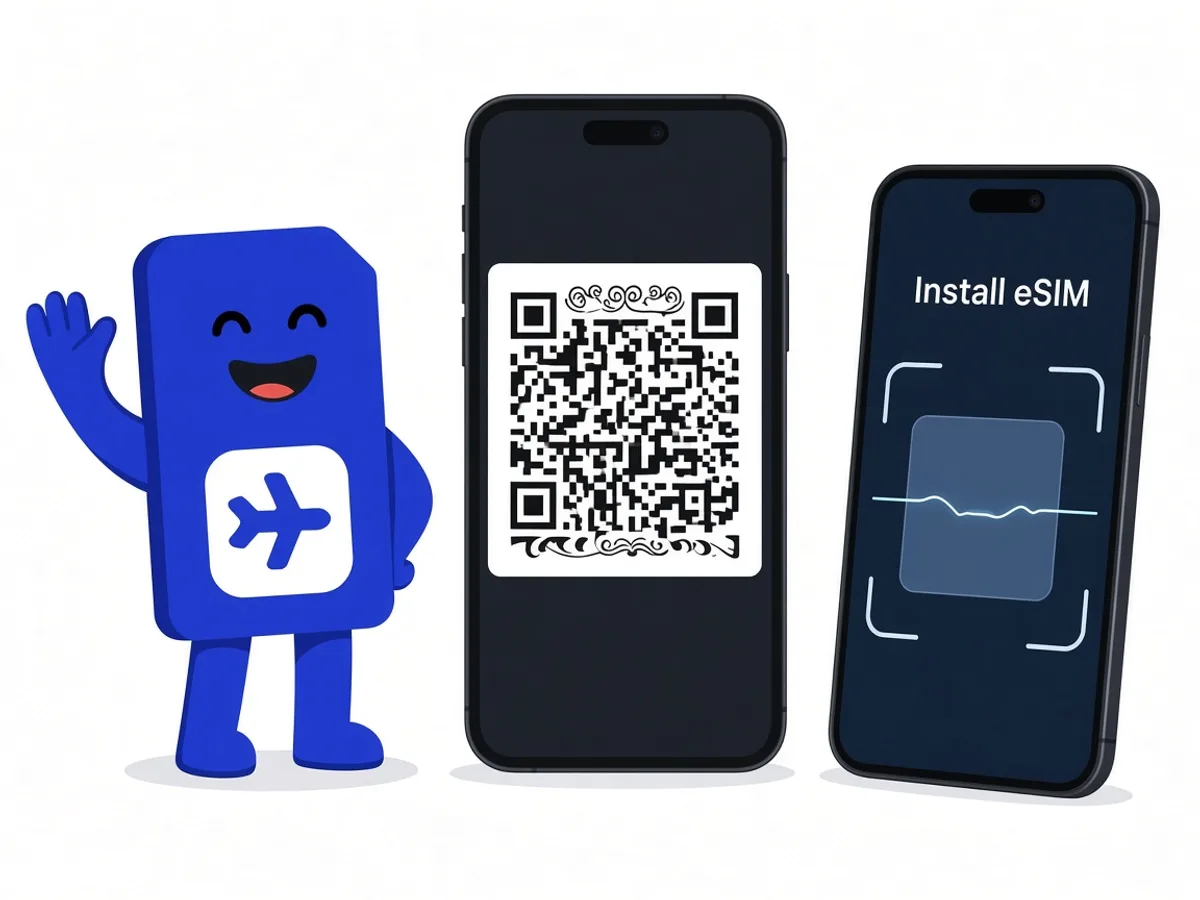
- 1
A second display
Open the order confirmation or the Payment Successful page on another device. Photographing the code from the same phone does not work.
- 2
Bright and sharp
Turn brightness up, clean the lens, avoid reflections. A blurry screenshot is often not enough for the camera.
- 3
Network for the download
Keep Wi-Fi stable and VPN off. The scan only starts the download. The profile arrives over the internet connection.
- 4
Spam and the address
If the email is not there, check spam and the email address from the order. The code is also in the Dashboard under the same email.
The same details without a camera
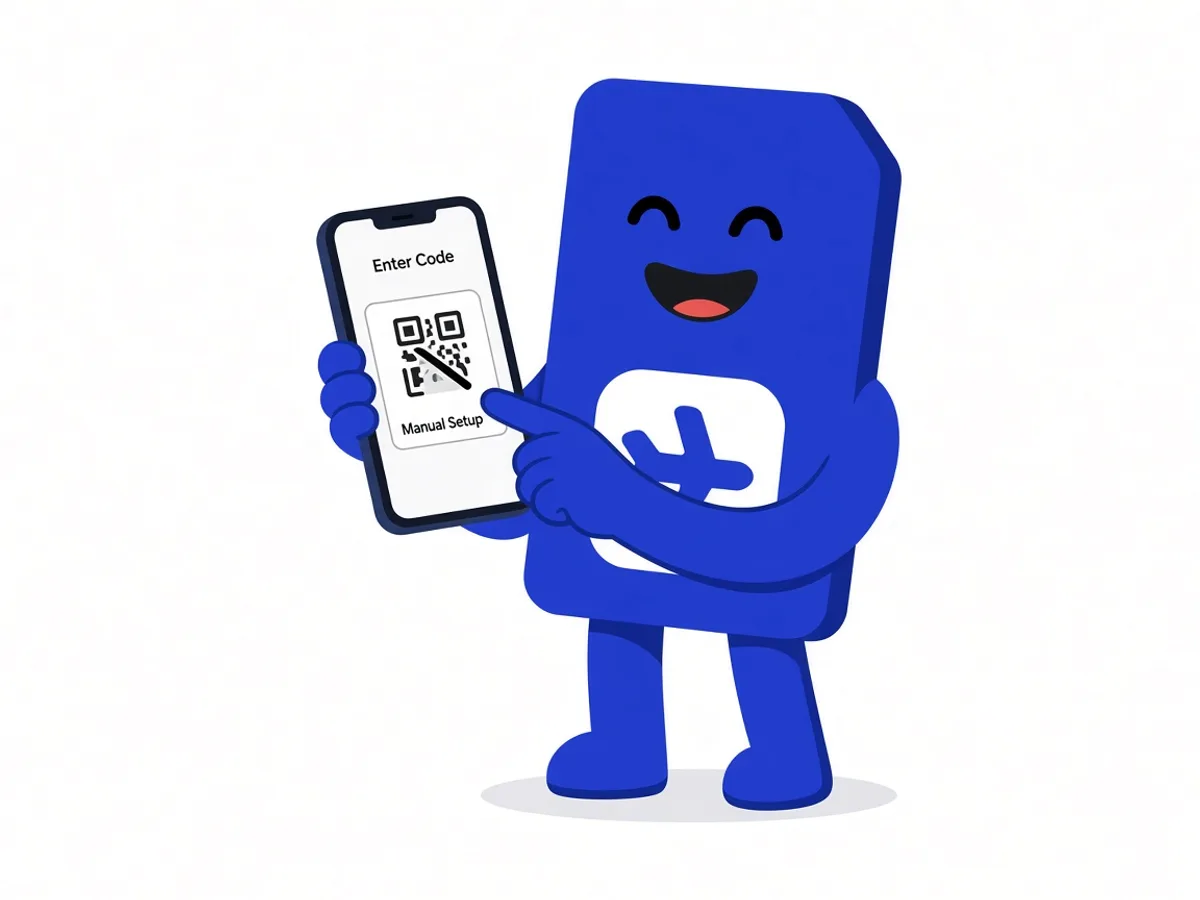
The SM-DP+ address and activation code are in the order confirmation, not on a general help page. iPhone: Settings → Cellular → Add eSIM → Enter Details Manually. Android: SIM manager or SIMs → Add eSIM → Enter activation code. Menu names differ by brand. The installation guide covers iPhone, Samsung, and Pixel separately.
A typo counts as a different code. Copy the line instead of retyping it if the second device allows that.
If the code is already used
First check whether the profile is already in the line list, just under another name. Then installation worked and you do not need a new scan. You need the switches from eSIM not working.
If there is no profile and the code is treated as used, write to support@sim.do with the ICCID and the email address of the order. We look at the order. A second scan of the old email does not create a new profile. If you still need the eSIM, that is a new purchase.
Questions about the scan
The questions that come up most often.
Can I scan the code from a printed sheet?
Yes, if the print is sharp and not cropped. A second display is more reliable.
The message appeared even though I am seeing the code for the first time.
Then it may already have been redeemed on another device or in an earlier attempt. Check the line list and write to support with the ICCID.
Do I need the sim.do app for the scan?
No. The scan happens in the system settings. The email and the Payment Successful page are enough.
Where does the SM-DP+ address come from?
Only from your sim.do order confirmation or from My eSIM Plans. Addresses from other guides do not belong to your order.
Read next
Set up your eSIM
eSIM QR code
Where the sim.do QR code is, why it works only once, and how manual entry works.
Something is not working
eSIM deleted
Deleting is final. The old QR code does not work a second time. How to report the case.
Set up your eSIM
Install an eSIM
Scan the QR code from the sim.do email, download the profile, and name the line — at home, on Wi-Fi.
Code is there, scan is broken?
Use the manual details from the email. If the code is used up, write to support with the ICCID.