eSIM QR code From sim.do.
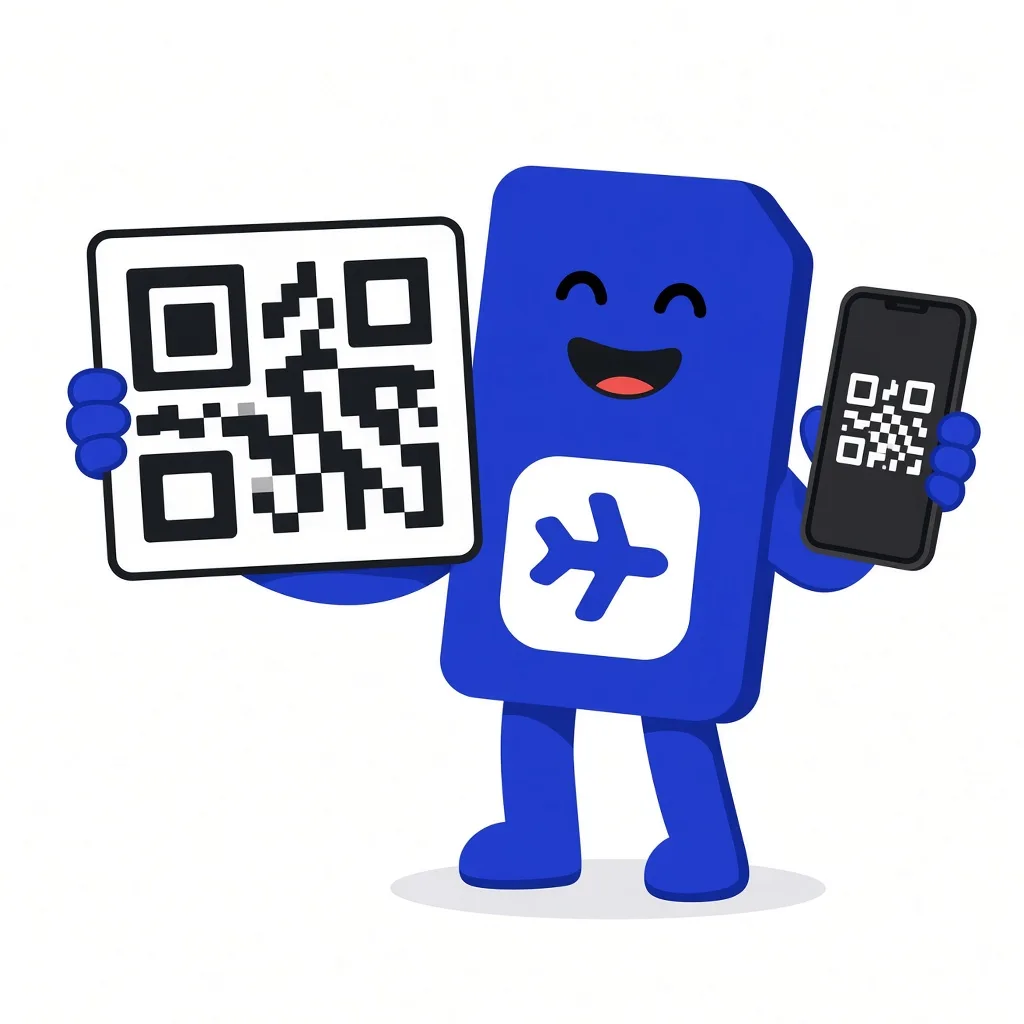
The QR code is the key your phone uses to download the sim.do profile. It works once, and only for one device.
In short
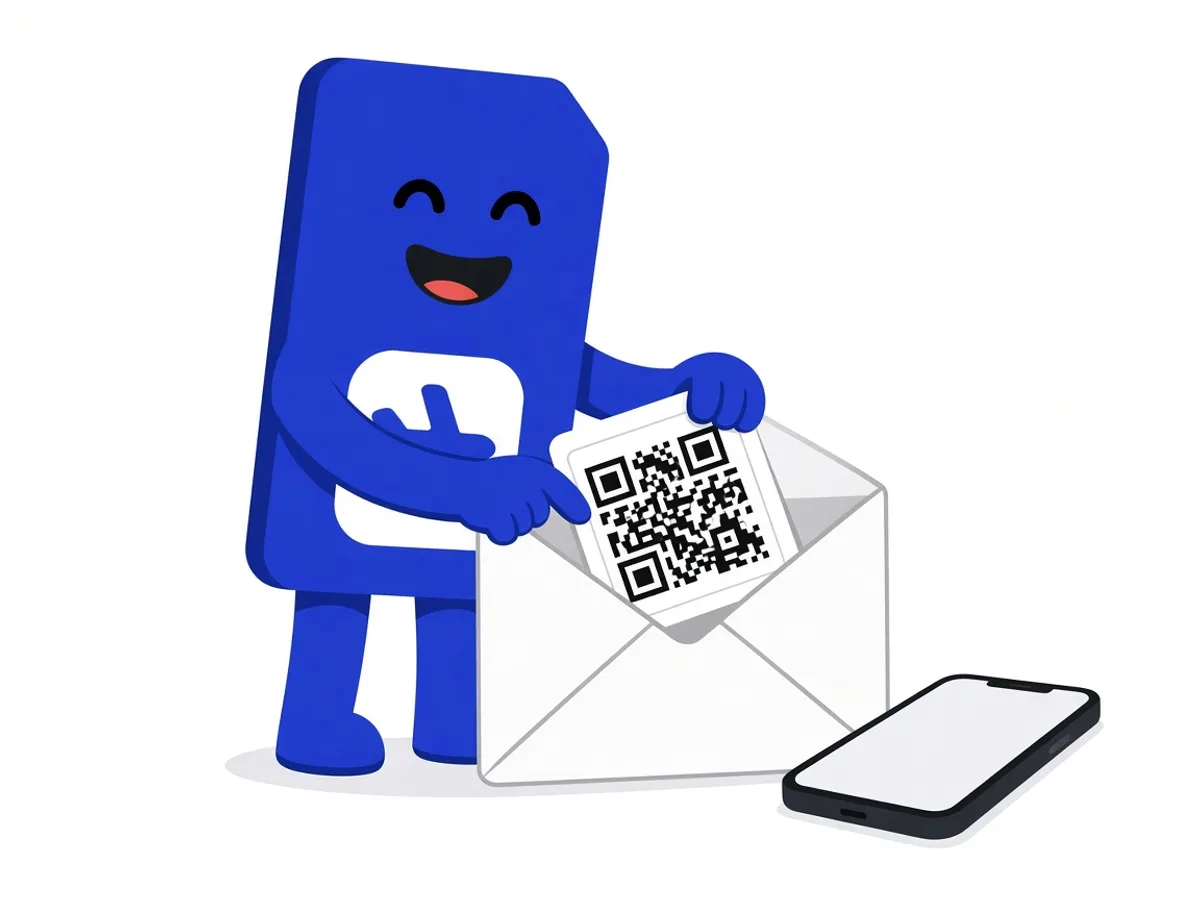
After purchase you see the QR code immediately on the Payment Successful page. We also send it with the invoice by email. The same code is in the Dashboard if you sign in with the email address of the order. Each code works once and only for one device. The manual details are called the SM-DP+ address and the activation code, and they are in the same email.
What the QR code does
The code contains the address your phone uses to download the eSIM profile. It is not a link to a website and it does not replace the plan page. After a successful download the profile is on the device and the code has done its job.
Right after payment you see the code on the website. At the same time an email arrives with the QR code, activation details, and the invoice. You do not need an app for that.
Where the code is after purchase
- 1
Payment Successful
Right after payment the QR code stays visible on the confirmation. Install from there if a second display is ready to scan.
- 2
Email
The same message contains the code, the quick-install buttons for iPhone and Android, and the blue button for device notes, including the APN if a network asks for access settings.
- 3
Dashboard
Sign in with the email address of the order and open My eSIM Plans. An account was not required for the purchase.
- 4
Check spam
If the email is missing, look in spam and for the email address you used at checkout. A different address does not see the order.
If you would rather type than scan
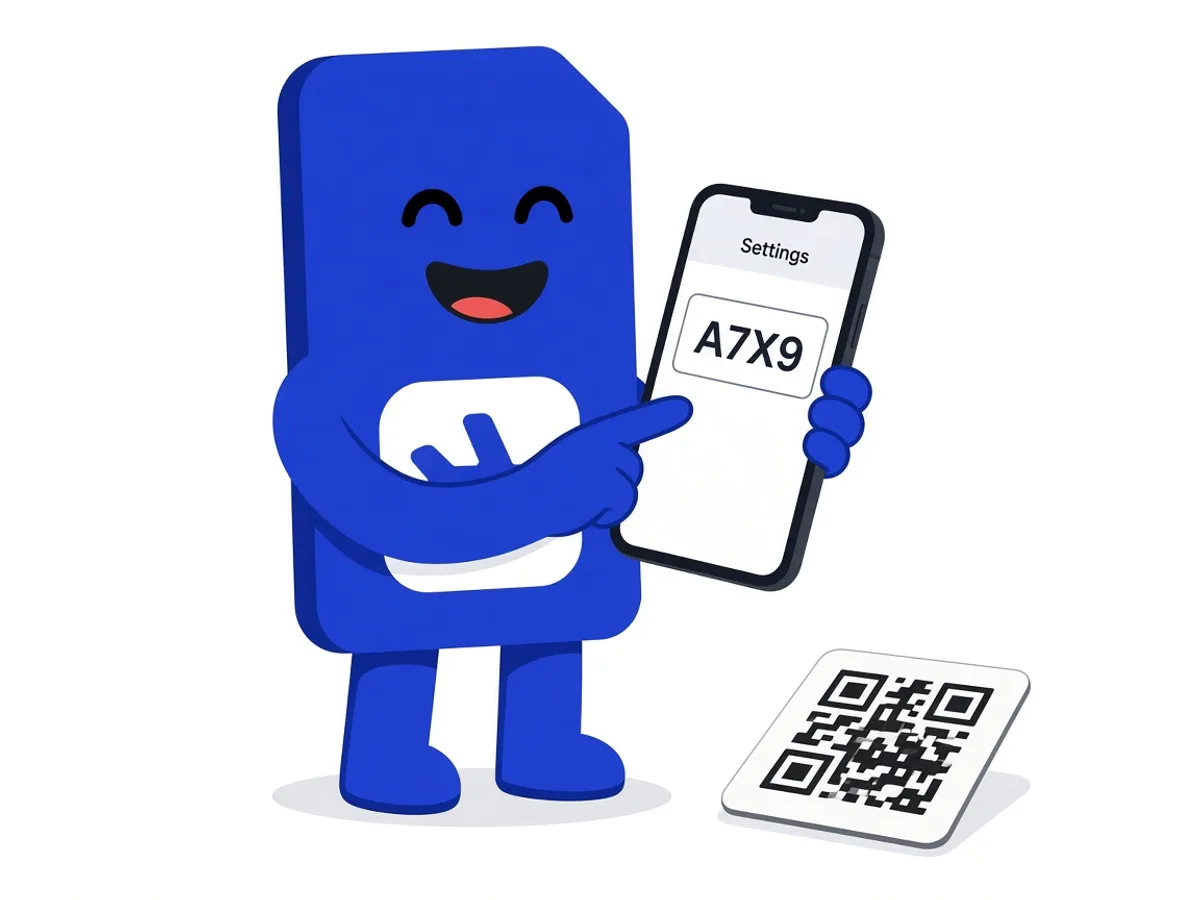
The order confirmation lists the SM-DP+ address and the activation code. On iPhone, manual entry is under Cellular → Add eSIM → Enter Details Manually. On Android the item is under the SIM manager or SIMs, depending on the maker, often behind “Enter activation code”.
Copy the characters exactly as they are in the email. A space or a cut-off code leads to an error, not to half a profile. The illustrated version is in the installation guide.
No other SM-DP+ server
Enter only the address from your sim.do email. Addresses from other providers belong to their profiles and do not work with a sim.do order.
Why the code works only once
Each QR code can be used only once. A second scan shows an error. The eSIM can be installed only once, on one device, and an eSIM that is already activated cannot be moved to another phone.
If you delete the profile, the original code becomes invalid. A new installation needs a new activation code. What you can do then is under eSIM deleted.
Questions about the QR code
The questions that come up most often.
Can I send the QR code to someone I am travelling with?
Only while it has not been installed yet, and then only for exactly one device. After installation it is used up and cannot be transferred.
Is a screenshot enough?
Yes, if the code is sharp, complete, and bright enough. Better is the email on a second device, or manual entry.
Is the code also on the invoice?
The QR code and the invoice arrive in the order confirmation. The invoice proves the purchase. The QR code installs the profile. Neither replaces the other.
What does the blue button in the email do?
It opens the notes for your device, including the APN if the destination network needs access settings entered by hand.
Read next
Set up your eSIM
Install an eSIM
Scan the QR code from the sim.do email, download the profile, and name the line — at home, on Wi-Fi.
Something is not working
QR code won’t scan
The camera fails, the code was already used, or it says “no longer valid”: enter it by hand instead of buying again.
Something is not working
eSIM deleted
Deleting is final. The old QR code does not work a second time. How to report the case.
The code is in the email, the steps are in the guide
If you already have the plan, open the guide for your device. Otherwise pick the destination first.