eSIM not working Checks in order.
If the sim.do eSIM is installed and there is still no internet, a setting on exactly this line is usually missing. The checks follow the order sim.do support asks for.

In short
A sim.do eSIM with no internet needs three things at once: the line is on, it is selected for mobile data, and Data Roaming is on for it. APN details are behind the blue button in the order confirmation. The display in the dashboard lags behind the device display.
First, name the problem
“Not working” here means: the profile is on the device, but pages do not load. If the QR code will not scan, that is a different case: QR code won’t scan. If sim.do still shows allowance and the phone is offline anyway, go to Data left, but no internet.
Country plans connect only in the booked country. If you are still at home or in transit outside the coverage, “No Service” is expected. The period should not start there either. Read Activate an eSIM.
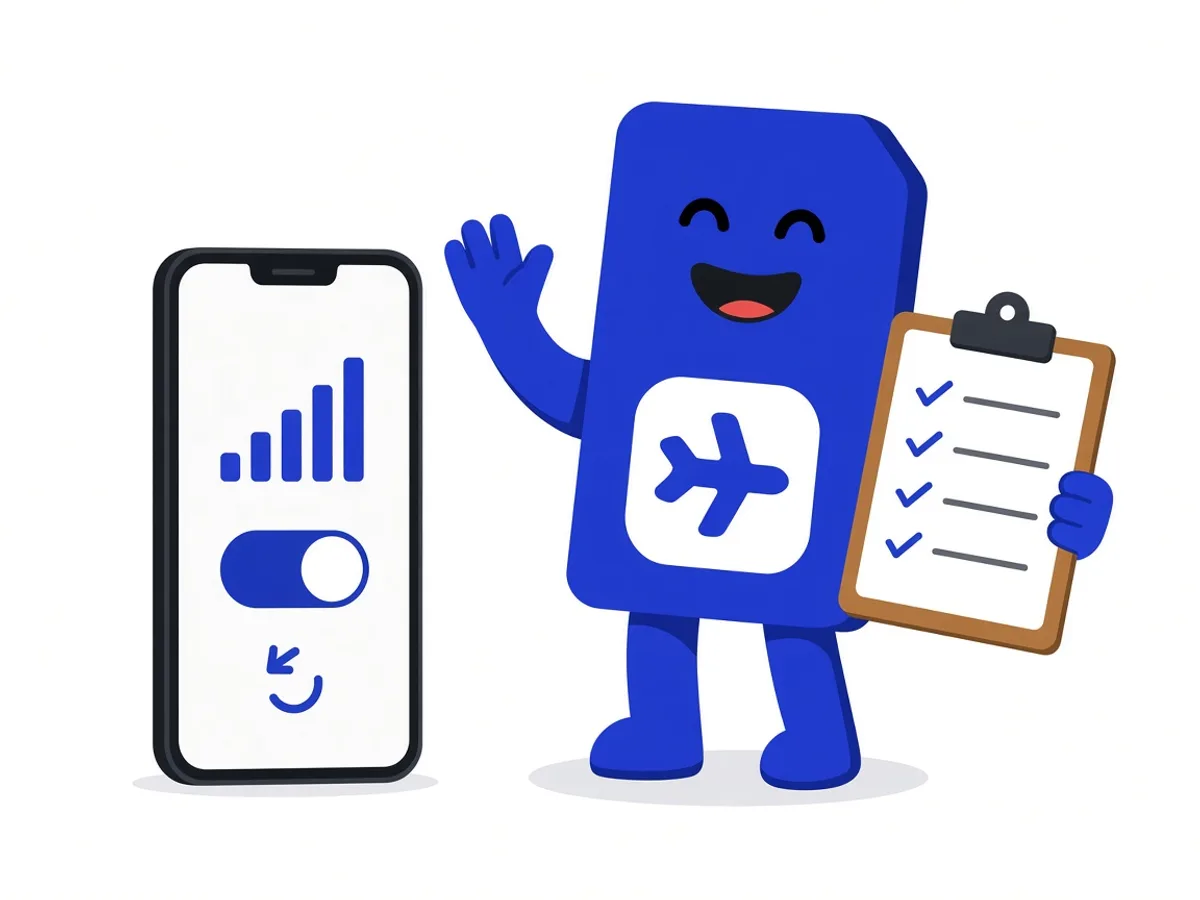
These checks, in this order
- 1
Line on
The sim.do eSIM is turned on. It can show as sim.do, Travel, Personal, Business, Secondary, or under the network name.
- 2
Data line
Mobile data points to sim.do, not to the main SIM. Leave automatic switching off, or the home contract takes over.
- 3
Data Roaming
Data Roaming is on for the sim.do line. On iPhone you set this per line. Leave roaming off on the main SIM if you want to avoid that contract’s prices.
- 4
APN and restart
Open the blue button in the order confirmation and enter the APN only if it is listed there. Then use airplane mode for 30 seconds, or restart the device.
The same points, different menu names
iPhone: Settings → Cellular. Choose sim.do for mobile data, Data Roaming in this line’s settings, and toggle airplane mode if it says “No Service”. If it stays on “3G” only, update to the current iOS version.
Android: choose sim.do for mobile data, turn Data Roaming on, check the APN through the blue button, and restart the device. Samsung and Pixel name the SIM manager differently. The tap paths are in the installation guide.
Manual network selection is the next step when there are bars and nothing still loads: Cellular → Network Selection, turn automatic off, and choose another available network. In buildings, mountains, and at busy times, signal can be weaker. That depends on the network on site.

What you send to support
If the checks change nothing, write through the contact form or to support@sim.do. The ICCID from the order confirmation or the Dashboard matters. Without it, the eSIM cannot be matched.
Also include the device model, the country you are in, and whether Data Roaming is on for the sim.do line. The fastest way is the form or an email to support@sim.do.
A few minutes is normal
In Saudi Arabia the first registration can take about five minutes, in Egypt about ten. A restart after that is more useful than deleting the profile immediately.
Questions when nothing loads
The questions that come up most often.
I have signal bars, but no pages. What first?
Check that mobile data is really on the sim.do line and that Data Roaming is on there. Bars can come from the main SIM.
Do I always have to enter the APN by hand?
No. Only if the blue button in the order confirmation names an APN. Otherwise leave the fields as the phone set them.
Does deleting and installing again help?
No, while the code works only once. Deleting makes the QR code invalid. Do the checks on this page first, then contact support.
How fast is the connection?
The network on site sets the speed. In the city often 4G or 5G. In buildings, mountains, or at busy times it can be slower.
Read next
Something is not working
Data left, but no internet
The sim.do display and the phone disagree. Check the line first, then wait five to ten minutes.
Set up your eSIM
Hotspot and Data Roaming
Tethering uses the same allowance. The eSIM roaming switch is not a bill from your contract.
Something is not working
QR code won’t scan
The camera fails, the code was already used, or it says “no longer valid”: enter it by hand instead of buying again.
Checks done, still offline?
Write to support with the ICCID, the device model, and the country you are in.